
Referee App.
Your match companion.
A practical introduction to the browser-based Showdown Referee App, aligned with the React R1.1 source version.
A tool for referees, not a replacement for the rules.
The Showdown Referee App helps officials keep track of points, sets, service, interruptions and match events. The current version is a React-based web application: it runs in a browser and can be installed as a progressive web app where supported.
Its features include a match setup flow, optional confirmation before recording actions, history of match events, timers, local persistence and communication with a Showdown tournament server.
Important: This guide describes the R1.1 source available for review. Particular buttons and labels may differ slightly on the deployed version. Always follow the current Showdown rules and tournament instructions.
Getting started
- Open the web address provided by your tournament organizer in a current browser.
- For convenient access, use your browser's Install app or Add to Home Screen option, if available.
- Open the application and configure a match, or use the server-loading function when your event provides it.
- Check both player or team names and match format before starting.
Working offline
The app uses local browser storage for game information and implements progressive-web-app behavior. After installation, certain app resources may be available offline depending on browser and cache state. Server loading and live updates require a working connection. Do not assume network actions were transmitted while offline.
Updating
When a new version is detected, the app can ask whether to install the update. Choose the update option when you are ready; ideally do so between matches, not during a critical point.
Set up the match
Use the setup screen to enter or confirm the competitors. Set the correct match format (for example, best of three or best of five sets where supported), then verify who serves first and which player is shown on which side.
- Enter or load the match and review the participant names.
- Check the Best of selection and the starting service.
- Confirm the on-screen court orientation matches the real table.
- Start the match only when the setup is correct.
For team matches, check the applicable tournament rules and the service sequence carefully. Team match handling is distinct from individual play.
Recording points and events
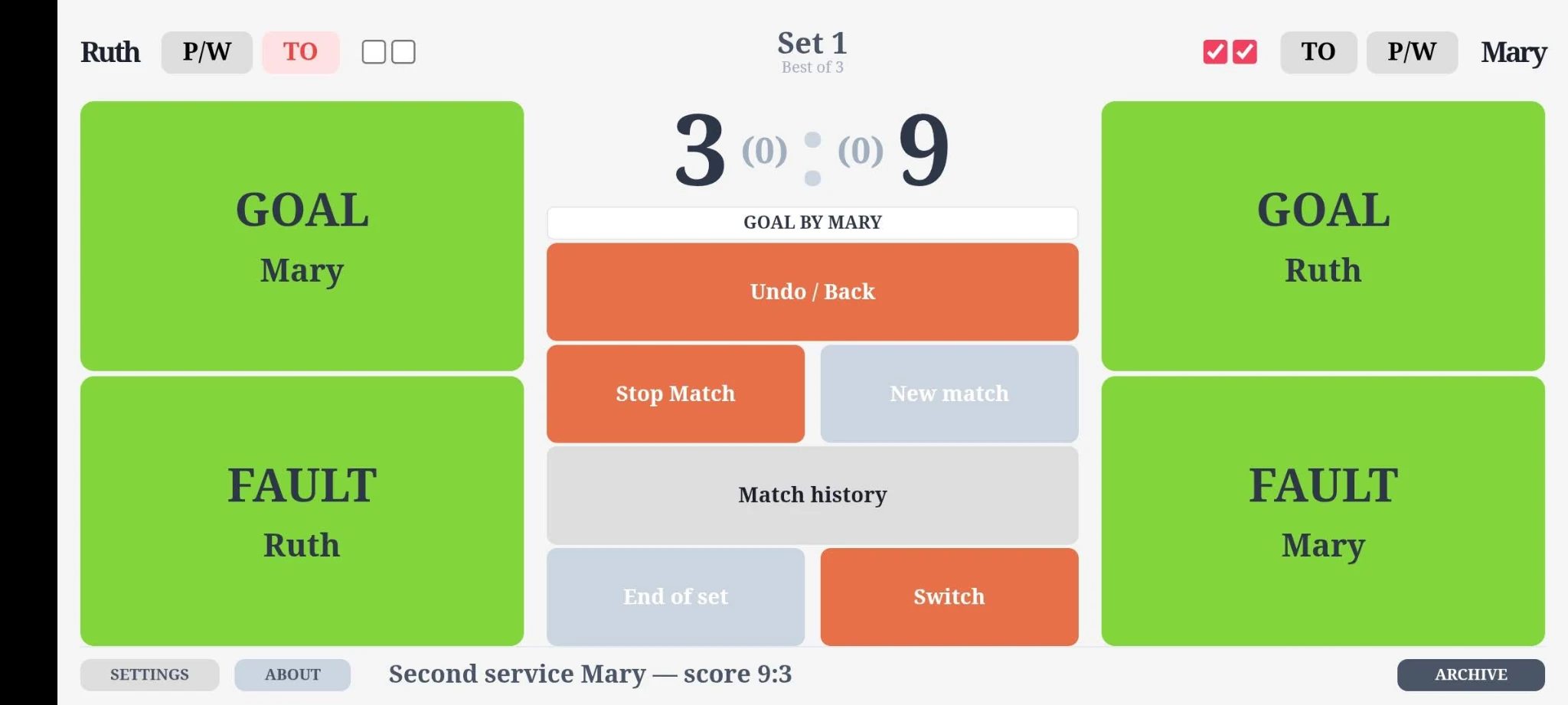
The match screen shows the score and service state. Record each rally outcome using the controls offered by the app. Depending on your preferences, actions can be handled in different modes.
Goals and faults
The settings include Goal mode and Fault mode. In event-oriented use, the app can distinguish the type of event instead of only incrementing a score. Use the option that matches the referee team's workflow.
Warnings, penalties and confirmation
Relevant disciplinary and score-changing actions can be recorded in the interface. When Save mode is active, a confirmation step helps prevent accidental entries. Verify the selected player and action before confirming.
Service and side changes
The app maintains service and court orientation. When a change of ends is required, complete the side-switch operation in the app as well as on the actual table. Always check the on-screen server before the next rally.
Completing a set and match
At the end of a set, check that the recorded result agrees with the match. Proceed to the next set through the app's match flow, or complete the match when the format has been fulfilled.
Timers and interruptions
The app contains an internal timer option. Timed functions are intended to help referees manage interruptions and match preparation. Where supported, the device can vibrate for timer milestones; vibration depends on browser and hardware permissions.
A newer team-match warm-up implementation discussed during development uses a 90-second countdown with cues at 30 and 60 seconds. Treat this feature as deployment-dependent until verified on the published build.
Do not use timer alerts as the sole official timekeeping mechanism if the browser is in the background or the device may suspend it.
Match history and saved data
The History feature helps you review recorded actions and resolve uncertainties during a match. The app also stores match and configuration data locally so that reopening the browser may restore the last state.
Browser storage is device- and browser-specific. Clearing website data, switching browsers or using private mode may remove saved information. Avoid resetting storage while a match is in progress.
If a score or service state looks wrong, check the match history and the real court situation before making any changes.
Loading a match from the server
For compatible tournaments, the application can retrieve match information from a Showdown tournament server. Depending on the event, you may need a tournament or server code and credentials supplied by the organizer.
- Open the Load from Server function.
- Enter the server or event information and any required credentials.
- Select the correct match.
- Check player/team names, match format and starting state after loading.
- During connected play, ensure a network connection is available for live ticker updates.
Server configuration and access codes are event-specific. This guide deliberately does not publish credentials or claim a universal public server endpoint.
Live ticker
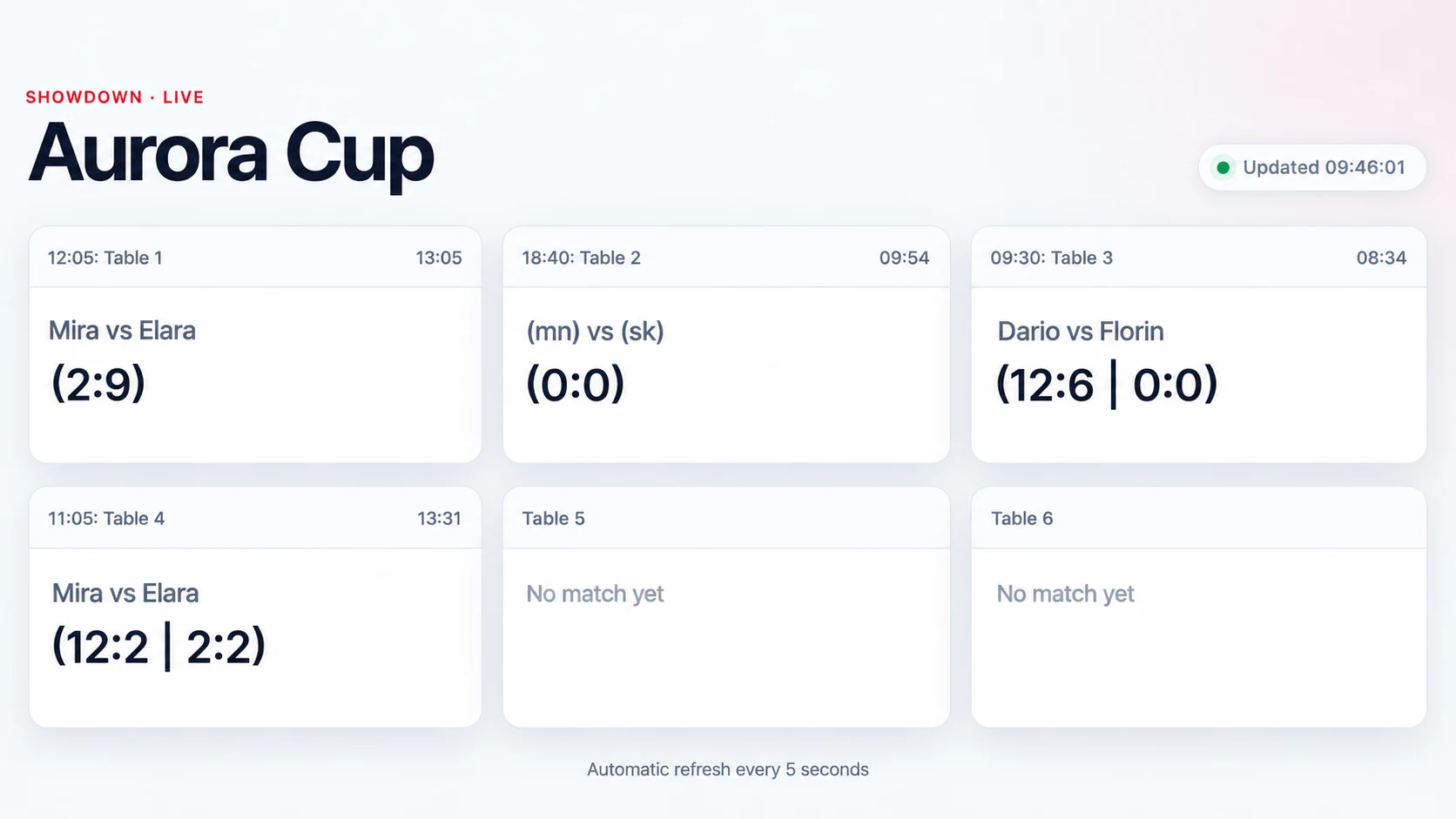
When a match is linked to the tournament server, the app can send score updates. If network access is interrupted, check with the organizer whether updates reached the server before relying on the public live score.
Settings explained
Open SETTINGS on the match screen. Choose the behavior that best fits how you officiate, then save the settings. Goal Mode and Fault Mode can be configured independently.
Goal Mode
A goal scores 2 points. The text on each button always identifies the correct player; what changes between modes is where the buttons are placed and which player the label refers to.
- Event Mode (default): The goal button is positioned on the side of the table where the goal is scored — opposite the player who scores it. Its label names the scorer. For example, when Mary is on the right and scores into Ruth's goal on the left, press GOAL Mary on the left. Mary receives two points.
- Score Mode: The goal button is positioned on the side of the player who receives the points, and its label names that player. With Mary on the right, press GOAL Mary on the right. Mary receives two points.
Remember: In both modes, press the button labelled GOAL Mary when Mary scores. The difference is its position, not its text or the scoring result.
Visual indicator: Goal buttons are green in Event Mode and yellow-orange in Score Mode. This colour change lets you recognize your selected Goal Mode immediately, without opening Settings.
Fault Mode
A fault awards 1 point to the opponent. Here, too, the buttons are labelled correctly in both modes, but the meaning and position follow different rules.
- Event Mode (default): The fault button is on the side of the player who commits the fault and names that player. If Ruth (left) commits a fault, press FAULT Ruth on the left. Mary receives one point.
- Score Mode: The fault button is on the side of the player receiving the point and names that player. If Ruth commits a fault, press FAULT Mary on the right. Mary receives one point.
Practical distinction: For goals, Event Mode shows the name of the scorer at the opponent's goal. For faults, Event Mode shows the name of the player responsible for the fault on that player's own side. In Score Mode, both buttons name the player receiving points and appear on that player's side.
Visual indicator: Fault buttons are green in Event Mode and yellow-orange in Score Mode. Goal Mode and Fault Mode can be selected independently, so goal and fault buttons may have different colours.
Enable Confirmation Box (Safe Mode)
On (default): A confirmation window appears before ordinary goal and fault point actions are recorded. You can review the proposed action and score before confirming it, helping avoid accidental presses.
Off: The normal point action is recorded immediately, without that extra confirmation. This may be faster but requires more care. Some special actions such as penalties follow their own workflow and are not necessarily covered by the same confirmation.
Use internal timer (on/off)
On (default): The application can start its built-in countdowns for relevant match interruptions, including timeouts, a side change in a deciding set, and between-set breaks. The countdown can appear within the match workflow; vibration warnings depend on the device and browser.
Off: The app does not automatically start these internal countdowns. The referee or organizer must track the required time separately. Turning this off does not remove the need to observe official time limits.
Keeping your preferences
Settings are stored locally in the browser and are usually restored the next time you open the app on the same device. They may not transfer to other devices and can be lost if browser site data is cleared. Check the chosen modes before your next match.
Quick check: In Event Mode, the screen position represents the location of the event: a goal goes into the opponent’s goal; a fault is committed by the player on that side. In Score Mode, the screen position represents the player receiving points. Green = Event Mode; yellow-orange = Score Mode. This indication applies separately to GOAL and FAULT buttons. Always read the button label before pressing.
Common questions
Does the new Referee App need to be downloaded from an app store?
No. The browser-based application runs in a supported browser. On many devices you can add it to the home screen using the browser's installation option.
Will it work without an internet connection?
Parts of an already cached PWA may work offline. Loading matches from a server and publishing live updates require connectivity. Test your device before officiating.
Why do I see an old version?
Reconnect to the internet and reopen the application. If it offers an update, install it between matches. Browser cache behavior can vary by device.
What if I have closed the browser accidentally?
Reopen the same application in the same browser. The app may recover locally saved match information. Review score, sets and service carefully before continuing.
Where can I report a problem?
Describe the device, browser, match situation and steps that led to the issue, then email sd-development.ch@bluewin.ch.
Editorial note: Screenshots and exact control-by-control instructions should be finalized against the deployed R1.1 app before public replacement of the existing manual.